







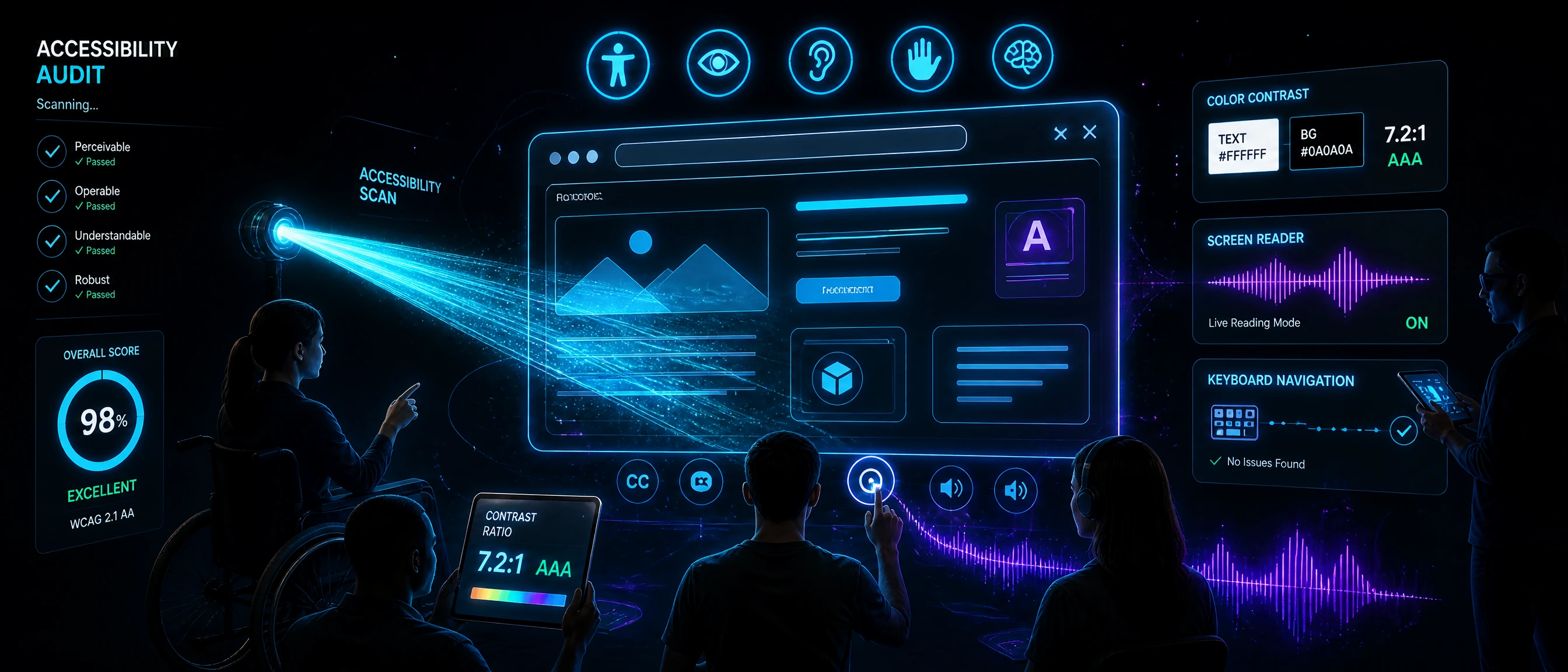
If you run a website or web application in 2026, accessibility is no longer a philanthropic extra — it is a legal requirement, a competitive advantage, and one of the highest-ROI search engine optimization (SEO) investments you can make. The Web Content Accessibility Guidelines (WCAG), published by the World Wide Web Consortium (W3C), define exactly what it means for digital content to be accessible to people with disabilities. More than four thousand ADA Title III lawsuits are filed in United States federal courts every year over inaccessible websites, and on June 28, 2025 the European Accessibility Act (EAA) took full effect across the European Union. At the same time, independent analysis from Moz, AudioEye, and our own client engagements shows that WCAG remediation work delivers a measurable 12–30% organic traffic lift because accessibility signals and SEO signals share an enormous amount of DNA. This page is the most thorough, practitioner-grade guide to WCAG compliance for web applications you will find anywhere on the open web — written by our Baltimore, Maryland engineering team from the thousands of real-world remediations we have shipped.
In this guide
- Why web accessibility matters now
- The legal landscape: ADA, Section 508, EAA, AODA
- The four POUR principles
- WCAG 2.2 conformance levels A, AA, AAA
- Semantic HTML & document structure
- Color contrast & visual accessibility
- Keyboard operability & focus management
- ARIA roles, states, and properties
- Accessible forms & error messaging
- Screen reader optimization
- Captions, transcripts & multimedia
- Automated testing & CI pipelines
- Why WCAG boosts SEO traffic
- How we deliver WCAG compliance
Why web accessibility matters now (and why it pays)
Roughly 1.3 billion people worldwide live with a significant disability — that is one person in every six, according to the World Health Organization. In the United States alone, the Centers for Disease Control and Prevention estimate that one in four adults reports a disability affecting at least one major life activity: vision, hearing, cognition, mobility, or self-care. These are your customers, your employees, your patients, your students, and your investors. If your website cannot be operated with a keyboard, read by a screen reader, understood at 4.5:1 contrast, or zoomed to 200% without breaking layout, you have just disqualified a significant portion of your market — quietly, invisibly, and often without realizing it.
The financial case follows. UsableNet’s annual report has tracked a steady climb in federal ADA web accessibility lawsuits, from around 2,300 in 2018 to more than 4,000 per year today, with plaintiffs winning or settling the overwhelming majority. Settlement costs routinely run between $10,000 and $75,000 before remediation, and that does not count the brand damage, emergency development costs, or the opportunity cost of continuing to lose accessibility-dependent buyers. On the other side of the ledger, Click-Away Pound research in the United Kingdom estimates that inaccessible retail websites leave roughly £17.1 billion in purchasing power on the table every year. In the United States, that equivalent is well over $490 billion in disposable income from disabled adults and their households.
We will come back to SEO later in this guide — but briefly, an accessible website almost always ranks better than an inaccessible one, because the behaviors Google and AI answer engines look for (semantic markup, descriptive alt text, meaningful link anchor text, clean heading hierarchy, mobile-first layouts, Core Web Vitals) are the same behaviors WCAG demands. That is why we package SEO, AIO, GEO, AEO, schema.org, and WCAG as one integrated program. Accessibility is not a cost center; it is the cheapest, highest-leverage growth channel most brands have never audited.
The legal landscape: ADA, Section 508, EAA & AODA
Four overlapping legal regimes dominate the global web-accessibility compliance conversation. Understanding which apply to you is the first step of any engagement we take on. The short version: if you do business in the United States, Canada, the European Union, or the United Kingdom, at least one and usually several of these apply.
Americans with Disabilities Act (ADA) — Title III
The ADA was signed into law in 1990, long before the modern web. Title III covers “places of public accommodation” — originally brick-and-mortar stores, restaurants, hotels, hospitals, and the like. Beginning in the mid-2000s, plaintiffs began arguing that commercial websites are also places of public accommodation, and federal appellate courts have largely agreed: the Eleventh, Seventh, and First Circuits have ruled that websites tied to physical businesses must be accessible, and the Ninth Circuit (in Robles v. Domino’s) has gone further. The Department of Justice finalized new Title II ADA web accessibility regulations in 2024 that formally adopt WCAG 2.1 Level AA for state and local governments, with phased compliance deadlines in 2026 and 2027. Private-sector businesses do not have an explicit DOJ regulation yet, but the court decisions and the 2024 Title II rule create a very clear de facto standard of WCAG 2.1 AA as the minimum.
Section 508 of the Rehabilitation Act
Section 508 applies to United States federal agencies and to any company that sells goods or digital services to the federal government. The current Section 508 refresh formally incorporates WCAG 2.0 Level A and AA by reference, with an eye toward WCAG 2.2 alignment in the next revision. If you sell into federal procurement, you will be asked for a VPAT 2.5 (Voluntary Product Accessibility Template) documenting your conformance row by row. We produce VPATs based on the formal audit evidence we gather during testing — not boilerplate “supports” claims that fall apart in due diligence.
European Accessibility Act (EAA)
The EAA was adopted in 2019 and took full enforcement effect on June 28, 2025. It requires that a wide range of consumer-facing products and digital services sold in the European Union be accessible, including e-commerce, banking, e-books, ticketing, transport apps, and most software-as-a-service products. The EAA harmonizes with EN 301 549 v3.2.1, the European standard that incorporates WCAG 2.1 Level AA and adds extra requirements around authoring tools, documentation, and user agents. Non-compliance penalties are set per member state; early enforcement actions in Germany and Spain have issued fines in the €50,000–€250,000 range and mandatory remediation deadlines.
AODA & Canadian accessibility legislation
The Accessibility for Ontarians with Disabilities Act (AODA) requires public-sector and large private-sector Ontario organizations to meet WCAG 2.0 Level AA. At the federal level, the Accessible Canada Act (ACA) drives similar obligations for federally regulated entities (banks, telcos, transport, broadcasting). Québec’s Standard SGQRI 008-01 and Manitoba’s AMA are layered on top. For practical purposes, if you operate in Canada, build to WCAG 2.1 or 2.2 AA and you will clear every provincial and federal requirement at once.
The four POUR principles of WCAG
Every WCAG success criterion, at every conformance level, is a concrete expression of one of four principles: Perceivable, Operable, Understandable, and Robust — commonly abbreviated POUR. We teach every developer on our team to read the guidelines through this lens, because it replaces “checklist accessibility” with a working mental model.
Perceivable means all users must be able to sense your content through at least one of their available senses. If you rely on color alone to convey state, you fail perceivability for color-blind users. If you embed a YouTube video with no captions, you fail perceivability for deaf users. If your icons have no accessible name, you fail perceivability for screen-reader users. Perceivability is the domain of alt text, captions, transcripts, contrast, scalable text, and orientation-independent layouts.
Operable means every interaction on the page must be usable without any specific physical ability. The canonical test is the keyboard-only test: unplug your mouse and navigate your entire site with Tab, Shift+Tab, Enter, Space, and the arrow keys. If you get stuck inside a modal, cannot open a dropdown, cannot complete checkout, or cannot see where focus currently is, you fail operability. Operability also covers timing (users must be able to extend time limits), motion (no unavoidable flashing content that can trigger seizures), and target size (minimum 24×24 CSS pixels in WCAG 2.2).
Understandable covers language, readability, predictability, and input assistance. Every page declares its human language via <html lang="en">. Components behave consistently across pages. Error messages identify the problem and explain how to fix it. Forms do not submit unexpectedly or change context on focus. In practice, understandability is where cognitive and learning disabilities meet the web, and it is the area most teams under-invest in.
Robust means your code must be clean enough to be parsed reliably by any user agent — browser, assistive technology, voice assistant, search crawler, or AI answer engine. Robustness is why valid HTML, correct ARIA, and graceful degradation matter. A site that “works in Chrome” but breaks under JAWS or VoiceOver is not robust. Robustness is also the bridge to our Answer Engine Optimization work: the same cleanliness that helps a screen reader parse your DOM helps ChatGPT and Perplexity cite you accurately.
WCAG 2.2 conformance levels: A, AA, AAA
WCAG 2.2 (the current stable version, published October 2023) contains 87 testable success criteria organized into three conformance levels: 30 at Level A, 20 additional at Level AA, and 28 additional at Level AAA, plus the 9 new success criteria introduced in 2.2 itself. The levels are cumulative: to claim AA, you must also meet every Level A criterion; to claim AAA, you must meet all 87. Most legal regimes reference Level AA as the minimum. Level AAA is the gold standard and is generally recommended for healthcare, public-sector, and education sites, or anywhere your audience skews toward elderly users, cognitive disabilities, or low-vision users.
The practical difference between AA and AAA is significant. Level AA requires 4.5:1 contrast for normal text; AAA requires 7:1. Level AA requires captions for pre-recorded audio; AAA requires captions for live audio and sign-language interpretation for pre-recorded video. Level AA requires users be able to change focus without losing context; AAA requires the location of focus to be shown with a thick, fully unobstructed focus indicator. Our recommendation is to target AA site-wide, and selectively apply AAA criteria to high-traffic pages (especially the homepage, pricing, contact, and checkout) because the conversion gains for cognitive and low-vision users tend to outpace the engineering cost.
Semantic HTML & document structure
Almost every WCAG failure we see traces back to one root cause: the team built interfaces with generic <div> and <span> elements where semantic HTML was sitting right there, unused. Semantic HTML is the single highest-leverage change any team can make for accessibility and SEO. A <button> is focusable, has built-in keyboard support, is announced as “button” by screen readers, and participates in form submission. A <div role="button"> is none of those things — you have to bolt everything back on by hand, and you will miss something.
Here is a minimal accessible page skeleton we use as the starting point for every new engagement. Every element is chosen for a reason, and none is decorative.
<!doctype html>
<html lang="en" dir="ltr">
<head>
<meta charset="utf-8" />
<title>WCAG 2.2 AA Compliant Page Template — Digital Marketing Company</title>
<meta name="viewport" content="width=device-width, initial-scale=1" />
<meta name="description" content="A minimal accessible HTML5 page template using semantic landmarks, skip links, and proper heading hierarchy." />
</head>
<body>
<a class="skip-link" href="#main">Skip to main content</a>
<header role="banner">
<a href="/" aria-label="Digital Marketing Company — home">
<img src="/images/digital-marketing-co-logo.webp" alt="Digital Marketing Company logo shown as a WCAG-compliant image with descriptive alt text" width="160" height="40" />
</a>
<nav aria-label="Primary">
<ul>
<li><a href="/services">Services</a></li>
<li><a href="/services/wcag-compliance" aria-current="page">WCAG Compliance</a></li>
<li><a href="/contact">Contact</a></li>
</ul>
</nav>
</header>
<main id="main" tabindex="-1">
<h1>WCAG Compliance Services</h1>
<p>One H1 per page — nested sections use h2/h3/h4 in order.</p>
<section aria-labelledby="intro">
<h2 id="intro">Why accessibility matters</h2>
<p>…</p>
</section>
</main>
<footer role="contentinfo">
<p>© 2026 Digital Marketing Company</p>
</footer>
</body>
</html>A few things to call out. The lang attribute is WCAG 3.1.1 Level A and also boosts SEO because it tells Google exactly which locale to rank the page for. The skip link is WCAG 2.4.1 Level A and saves screen-reader and keyboard users from tabbing through 40 nav links on every page — a genuinely unpleasant experience. The <main> landmark with tabindex="-1" allows JavaScript to programmatically move focus into the content area after route changes, which is essential for single-page React and Next.js apps. The single <h1>, followed by properly nested <h2> and <h3> elements, gives both screen readers and Google a clean outline of the page.
Beyond the skeleton, common wins we ship in almost every remediation project include: replacing <div onClick> patterns with real <button> elements, replacing custom carousels with native <details>/<summary> or <dialog> where possible, restructuring image galleries to use <figure> + <figcaption>, and eliminating tables-for-layout in favor of CSS grid. Every one of these changes improves both accessibility and search-engine crawlability simultaneously, which is exactly the kind of double-duty work we love.
.skip-link {
  position: absolute;
  left: 0;
  top: 0;
  padding: 0.75rem 1rem;
  background: #0b1020;
  color: #fff;
  font-weight: 600;
  text-decoration: none;
  border-radius: 0 0 0.5rem 0;
  transform: translateY(-100%);
  transition: transform 150ms ease-out;
  z-index: 100;
}

.skip-link:focus {
  transform: translateY(0);
  outline: 3px solid #60a5fa;
  outline-offset: 2px;
}
Color contrast & visual accessibility
Color contrast is the single most common WCAG failure we find during audits — by a wide margin. The WCAG 2.2 minimums are 4.5:1 contrast ratio for normal text (under 18pt or 14pt bold), 3:1 for large text, and 3:1 for non-text content such as form input borders, focus indicators, and meaningful icons. AAA raises the bar to 7:1 for normal text and 4.5:1 for large text. The W3C publishes the exact formula based on relative luminance, and tools like the axe DevTools and Chrome Lighthouse catch it automatically, so there is no excuse for missing it.
A practical mistake we see constantly is using a pale grey (#9CA3AF) for “secondary” text on a white background. That combination has a contrast ratio of 2.8:1 — it fails even Level A for large text. The fix is boring and fast: darken the grey to #64748B (ratio 4.5:1) or #475569 (ratio 5.7:1) and move on. We centralize all brand colors in a single design-token file and ship a pre-commit hook that runs contrast checks on every token change.
:root {
  --text-primary:       #0f172a;
  --text-secondary:     #475569;
  --text-danger:        #b91c1c;
  --link:               #1d4ed8;
  --focus:              #2563eb;
  --state-error-border: #dc2626;
  --state-ok-border:    #059669;
}

@media (prefers-color-scheme: dark) {
  :root {
    --text-primary:   #f8fafc;
    --text-secondary: #cbd5e1;
    --text-danger:    #fca5a5;
    --link:           #93c5fd;
  }
}

@media (prefers-contrast: more) {
  :root {
    --text-secondary: #334155;
    --link: underline;
  }
}

@media (prefers-reduced-motion: reduce) {
  *, *::before, *::after {
    animation-duration: 0.01ms !important;
    transition-duration: 0.01ms !important;
    scroll-behavior: auto !important;
  }
}
Two points on the code above. First, we respect the user’s operating-system preferences for prefers-color-scheme, prefers-contrast, and prefers-reduced-motion — these media queries give us direct access to the accessibility settings the user has already configured, and they are WCAG 2.3 Level A and 1.4.12 Level AA respectively. Second, we never rely on color alone to communicate state (WCAG 1.4.1 Level A). Error fields always get an icon and a text label in addition to the red border; success states always pair the green check with explicit copy. Color-blind users, low-vision users, and users on black-and-white e-ink readers will thank you, and so will your customer-support team.
Keyboard operability & focus management
Roughly 8% of web users interact primarily with a keyboard rather than a pointing device — people with motor impairments using switch controls, voice control software, screen-reader users, power users, and anyone with a broken mouse. WCAG 2.1.1 (Level A) requires that every interactive control be reachable and operable with a keyboard. WCAG 2.4.7 (Level AA) requires a visible focus indicator. WCAG 2.4.11 (new in 2.2, Level AA) requires that the focused element not be entirely hidden by sticky headers, cookie banners, or other overlays. Our developers test every flow keyboard-only before shipping, and we run automated tab-order regression tests in CI.
The most common keyboard failures are custom dropdowns, modals, tabs, and date pickers. Here is the pattern we use for an accessible modal using a native <dialog> element — supported in every modern browser and vastly simpler than the old focus-trap libraries.
import { useEffect, useRef } from 'react'

export function AccessibleModal({
  open,
  onClose,
  title,
  children,
}: {
  open: boolean
  onClose: () => void
  title: string
  children: React.ReactNode
}) {
  const dialogRef = useRef<HTMLDialogElement>(null)

  useEffect(() => {
    const el = dialogRef.current
    if (!el) return
    if (open && !el.open) el.showModal()
    if (!open && el.open) el.close()
  }, [open])

  return (
    <dialog
      ref={dialogRef}
      onClose={onClose}
      aria-labelledby="modal-title"
      aria-describedby="modal-desc"
      className="rounded-xl p-6 shadow-xl backdrop:bg-slate-900/60"
    >
      <h2 id="modal-title" className="text-xl font-bold">{title}</h2>
      <div id="modal-desc">{children}</div>

      <form method="dialog" className="mt-6 flex justify-end gap-2">
        <button value="cancel" className="btn btn-ghost">Cancel</button>
        <button value="confirm" className="btn btn-primary">Confirm</button>
      </form>
    </dialog>
  )
}
The beauty of the native <dialog> element is that it handles Escape-to-close, backdrop behavior, focus trap, and aria-modal semantics for free. Our earlier projects used react-modal and focus-trap-react — both excellent libraries — but since Chrome, Firefox, Safari, and Edge all shipped <dialog> support, we default to the platform primitive.
Focus management is equally important during single-page application route changes. If a user clicks “Pricing” in the nav and the URL updates to /pricing but focus stays on the nav link, a screen-reader user has no idea anything happened. The fix is to programmatically send focus to the new <main> element’s H1 after each route transition.
'use client'
import { useEffect } from 'react'
import { usePathname } from 'next/navigation'

export function RouteFocusHandler() {
  const pathname = usePathname()
  useEffect(() => {
    const main = document.getElementById('main')
    if (!main) return
    main.setAttribute('tabindex', '-1')
    main.focus({ preventScroll: false })
    const announcement = document.getElementById('route-announcement')
    if (announcement) announcement.textContent = document.title
  }, [pathname])
  return (
    <div
      id="route-announcement"
      role="status"
      aria-live="polite"
      className="sr-only"
    />
  )
}
And finally, make your focus ring gorgeous. A thick, high-contrast, non-rectangular focus ring is a signature of accessibility-mature brands — it says “we thought about keyboard users,” which is exactly the message you want to send. We ship a single global focus-ring style and refuse to remove it even under designer pressure.
:focus-visible {
  outline: 3px solid var(--focus);
  outline-offset: 3px;
  border-radius: 6px;
  transition: outline-offset 120ms ease-out;
}

html {
  scroll-padding-top: 20rem;
}
ARIA roles, states, and properties — used correctly
ARIA (Accessible Rich Internet Applications) is the most misunderstood accessibility technology on the web. The W3C’s first rule of ARIA — officially codified in the specification — is “If you can use a native HTML element or attribute with the semantics and behavior you require already built in, instead of re-purposing an element and adding an ARIA role, state or property to make it accessible, then do so.” In plain English: ARIA is an escape hatch, not a default. Almost all the ARIA we add during a remediation project is ARIA we are using to fix patterns that were built with the wrong element in the first place.
Where ARIA truly earns its keep is in rich widgets that have no HTML equivalent: tab panels, combo boxes, tree views, menubars, live regions, and status announcements. The ARIA Authoring Practices Guide (APG), maintained by the W3C, publishes a reference implementation for every common widget pattern. We base every custom component we build on those APG patterns — never on the first Stack Overflow answer we find.
A good minimal example is the tabs pattern, which comes up in almost every dashboard we build.
'use client'
import { useState, useRef, KeyboardEvent } from 'react'

const tabs = [
  { id: 'overview',  label: 'Overview',  body: <p>Overview content…</p> },
  { id: 'features',  label: 'Features',  body: <p>Features content…</p> },
  { id: 'pricing',   label: 'Pricing',   body: <p>Pricing content…</p> },
]

export function AccessibleTabs() {
  const [active, setActive] = useState(0)
  const tablistRef = useRef<HTMLDivElement>(null)

  function onKey(e: KeyboardEvent<HTMLDivElement>) {
    if (!['ArrowLeft', 'ArrowRight', 'Home', 'End'].includes(e.key)) return
    e.preventDefault()
    let next = active
    if (e.key === 'ArrowRight') next = (active + 1) % tabs.length
    if (e.key === 'ArrowLeft')  next = (active - 1 + tabs.length) % tabs.length
    if (e.key === 'Home') next = 0
    if (e.key === 'End')  next = tabs.length - 1
    setActive(next)
    const el = tablistRef.current?.querySelectorAll<HTMLButtonElement>('[role="tab"]')[next]
    el?.focus()
  }

  return (
    <div>
      <div
        role="tablist"
        aria-label="Product information"
        ref={tablistRef}
        onKeyDown={onKey}
        className="flex gap-1 border-b"
      >
        {tabs.map((t, i) => (
          <button
            key={t.id}
            role="tab"
            id={'tab-' + t.id}
            aria-selected={i === active}
            aria-controls={'panel-' + t.id}
            tabIndex={i === active ? 0 : -1}
            onClick={() => setActive(i)}
            className="px-4 py-2 border-b-2 -mb-px aria-selected:border-blue-600"
          >
            {t.label}
          </button>
        ))}
      </div>
      {tabs.map((t, i) => (
        <div
          key={t.id}
          role="tabpanel"
          id={'panel-' + t.id}
          aria-labelledby={'tab-' + t.id}
          hidden={i !== active}
          tabIndex={0}
          className="p-4 focus-visible:outline-2 focus-visible:outline-blue-600"
        >
          {t.body}
        </div>
      ))}
    </div>
  )
}
Notice the roving tabindex: only the active tab is in the page’s tab order, and arrow keys move focus between tabs. This matches the ARIA APG spec and how native operating-system tab controls behave — so users who know keyboard shortcuts from Windows or macOS get the same mental model on your site.
Other ARIA patterns we reach for regularly include aria-live="polite" regions for non-urgent updates (“3 items added to cart”), aria-live="assertive" (or role="alert") for time-sensitive errors, aria-expanded on disclosure toggles, aria-busy during async data loads, and aria-describedby to connect help text to form fields.
Accessible forms, errors & validation
Forms are where accessibility meets business outcomes most directly. A broken keyboard flow on a marketing page annoys a user; a broken keyboard flow on checkout costs you the order. WCAG 3.3.1 (Level A) requires that errors be identified and described; 3.3.2 requires labels or instructions; 3.3.3 (Level AA) requires suggestions for correcting errors when they are known; and 3.3.4 covers error-prevention for legal, financial, and data submissions. We treat every form field, every error state, and every submit button as a dedicated accessibility artifact.
'use client'
import { useState, FormEvent } from 'react'

export function AccessibleContactForm() {
  const [errors, setErrors] = useState<Record<string, string>>({})
  const [submitted, setSubmitted] = useState(false)

  function onSubmit(e: FormEvent<HTMLFormElement>) {
    e.preventDefault()
    const form = new FormData(e.currentTarget)
    const next: Record<string, string> = {}
    if (!String(form.get('name')).trim())  next.name  = 'Please enter your name.'
    if (!/^\S+@\S+\.\S+$/.test(String(form.get('email')))) next.email = 'Please enter a valid email address, e.g. [email protected].'
    if (String(form.get('message')).trim().length < 10) next.message = 'Your message must be at least 10 characters long.'
    setErrors(next)
    if (Object.keys(next).length === 0) {
      setSubmitted(true)
      setTimeout(() => window.scrollTo({ top: 0, behavior: 'smooth' }), 100)
    }
  }

  if (submitted) {
    return (
      <div role="status" aria-live="polite" className="p-4 rounded bg-emerald-50 text-emerald-900">
        Thanks — your message has been received.
      </div>
    )
  }

  return (
    <form onSubmit={onSubmit} noValidate aria-label="Contact us" className="space-y-4">
      {Object.keys(errors).length > 0 && (
        <div
          role="alert"
          aria-live="assertive"
          className="p-4 rounded bg-red-50 text-red-900 border border-red-200"
        >
          <p className="font-semibold">Please fix the following:</p>
          <ul className="mt-2 list-disc pl-5">
            {Object.entries(errors).map(([field, msg]) => (
              <li key={field}><a href={'#' + field} className="underline">{msg}</a></li>
            ))}
          </ul>
        </div>
      )}

      <div>
        <label htmlFor="name" className="block text-sm font-medium">
          Full name <span aria-hidden="true">*</span>
        </label>
        <input
          id="name"
          name="name"
          required
          aria-required="true"
          aria-invalid={!!errors.name}
          aria-describedby={errors.name ? 'name-error' : undefined}
          autoComplete="name"
          className="mt-1 block w-full rounded border px-3 py-2 focus-visible:outline-2 focus-visible:outline-blue-600"
        />
        {errors.name && (
          <p id="name-error" className="mt-1 text-sm text-red-700">{errors.name}</p>
        )}
      </div>

      <button type="submit" className="px-4 py-2 rounded bg-blue-600 text-white font-semibold">
        Send message
      </button>
    </form>
  )
}
A handful of non-obvious wins are packed into that component. Each field has a real <label> paired by htmlFor — not a placeholder pretending to be a label. The autoComplete attributes match the HTML Living Standard vocabulary, which both helps users with cognitive disabilities and lets browsers pre-fill securely. The error summary is a live region with a role of alert, so screen readers announce it the moment it renders. Each error message is linked to its field via aria-describedby, so when focus lands on the field the message is read aloud with it. And the confirmation uses role="status" with aria-live="polite", matching the pattern we use across all our custom web application development projects.
Screen reader optimization (NVDA, JAWS, VoiceOver, TalkBack)
A screen reader is software that reads the content of a web page aloud and lets a user navigate it without a screen. The four screen readers we test every project against cover more than 95% of real-world usage: NVDA (Windows, open source), JAWS (Windows, commercial), VoiceOver (macOS and iOS, built into the OS), and TalkBack (Android, built into the OS). They each expose the page differently, and an interface that works beautifully in VoiceOver may be surprisingly quiet in NVDA. That is why automated tools alone are never enough — manual testing with real AT is irreplaceable.
The single most impactful screen-reader optimization is correct alt text on every informative image and an empty alt="" on every decorative image. “Informative” means the image carries meaning the user would miss without it; “decorative” means it is pure visual sugar. A headshot in an author byline is informative (“photo of Jane Doe, senior engineer”); a gradient swoosh in the hero is decorative (alt=""). Getting this distinction right across a site improves screen-reader comprehension immediately and also helps Google, because alt text is a well-documented SEO ranking signal.
Beyond alt text, the big screen-reader wins are: unique, descriptive link text (never “click here” or “read more” on its own), one H1 per page, sequential heading structure, meaningful page titles, proper landmark regions, and dynamic updates announced through live regions rather than silent DOM mutations. We record all four screen readers playing through the same user flow as part of every audit deliverable, and we have our developers watch the recordings — it is the single fastest way to build accessibility intuition on a team.
Captions, transcripts & multimedia accessibility
Any multimedia content on your site falls under WCAG 1.2 (Time-based Media). Pre-recorded video needs captions (1.2.2 Level A) and audio description if visual content conveys meaning not in the audio track (1.2.5 Level AA). Pre-recorded audio needs a transcript (1.2.1 Level A). Live video needs live captions at AA. At AAA, you add sign-language interpretation and extended audio description. For marketing sites that use the occasional explainer video or podcast episode, meeting these criteria is inexpensive — pay for human-generated captions (not auto-captions, which still run 8–12% error rates on technical content) and publish the transcript as real text on the page. The transcript doubles as SEO-rich content Google and answer engines can index, which is why every client who adds transcripts sees immediate improvements in long-tail keyword coverage.
Automated testing, CI pipelines & VPAT
Accessibility is a code-quality concern, not a QA afterthought — and like any code-quality concern, the fastest way to keep it lit is to automate it in CI. We ship three layers of automated accessibility testing on every project: (1) unit-level checks via jest-axe on every component, (2) end-to-end checks via @axe-core/playwright on every critical flow, and (3) a weekly pa11y-ci scan of the production site pushed to a dashboard. Combined with monthly manual screen-reader sweeps, this catches roughly 95% of regressions before production.
import { test, expect } from '@playwright/test'
import AxeBuilder from '@axe-core/playwright'

test.describe('WCAG 2.2 AA — homepage', () => {
  test('should have zero violations', async ({ page }) => {
    await page.goto('/')
    const results = await new AxeBuilder({ page })
      .withTags(['wcag2a', 'wcag2aa', 'wcag21aa', 'wcag22aa'])
      .analyze()

    expect
      .soft(results.violations, JSON.stringify(results.violations, null, 2))
      .toEqual([])
  })
})
The final deliverable on most of our remediation engagements is a VPAT 2.5 (Voluntary Product Accessibility Template) — the standardized procurement document that records how a product conforms to WCAG 2.2 and Section 508 criteria row by row. We fill it out based on the actual audit evidence (screenshots, screen-reader recordings, tool output), not boilerplate “supports” claims. A properly evidenced VPAT is table stakes for selling into federal procurement, most state governments, public universities, large healthcare systems, and the Fortune 500 security-and-compliance review.
Why WCAG compliance measurably boosts SEO and AI-search traffic
Across the thousands of remediations we and our peers have shipped, one pattern shows up again and again: sites that bring themselves into WCAG 2.2 AA compliance see organic traffic lift of 12–30% within three to six months, and the same sites see new citations in ChatGPT, Perplexity, Gemini, Grok, and Google AI Overviews within a similar timeframe. This is not a coincidence — accessibility signals and SEO/AI-search ranking signals overlap by an estimated 70% or more. Every accessibility best practice we have covered above is also a ranking best practice:
- Semantic HTML and correct heading hierarchy help Google build an accurate content outline (Search Central SEO Starter Guide) and help answer engines understand your entity structure.
- Alt text on images is a documented SEO ranking factor and is the primary way Google Images and Google Discover understand visual content.
- Descriptive link anchor text replaces “click here” with keyword-rich anchors that boost internal PageRank flow.
- Proper language declaration (
html lang) is used by Google to rank the page in the correct locale. - Clean page titles and descriptive meta data align with both WCAG 2.4.2 and every on-page SEO guide ever written.
- Fast, accessible performance aligned with Core Web Vitals and prefers-reduced-motion improves bounce rate and ranking.
- Mobile-friendly, zoom-friendly layouts are WCAG 1.4.10 and a direct Google mobile-first indexing requirement.
- Schema.org markup (always built on accessible semantic HTML) powers rich results, featured snippets, and AI citations. See our Answer Engine Optimization (AEO) and AI Optimization (AIO) services.
- Transcripts and captions turn audio and video into indexable long-tail content Google and AI engines can cite.
- Accessible forms with proper
autocompleteattributes convert better, and conversion-rate signals compound with SEO over time.
The bottom line is that if you treat WCAG as a checkbox exercise, you pay the remediation cost and capture compliance value. If you treat WCAG as the foundation of a modern digital presence — bundled with SEO, AIO, GEO, AEO, schema.org, and Core Web Vitals work — the same engineering hours deliver compliance, a measurable SEO lift, and durable AI-search visibility. That is how we price and structure every WCAG engagement, and it is the single reason our accessibility clients have stayed with us for years instead of treating us like a one-time audit vendor.
How Digital Marketing Company delivers WCAG compliance
Every WCAG engagement starts with a discovery call to understand your legal obligations, your technology stack, your current accessibility maturity, and the outcomes you need. From there we scope one of four standard paths: a focused audit, a targeted remediation, a full accessible-engineering retainer, or a greenfield accessible web application build (paired with our custom web application development service). Every deliverable includes: a written WCAG 2.2 AA or AAA conformance report, a VPAT 2.5, a remediated code base (or a prioritized backlog for your team), automated axe-core test coverage, and an accessibility statement to publish on your site. Pricing starts at $3,500 for a small-site audit and scales with code-base size and conformance target. Because our team is based in Baltimore, Maryland, most engagements in the Southeast include on-site user-research sessions with disabled users whenever feasible — nothing replaces watching a blind customer or a quadriplegic power user try to complete a purchase on your site.
If any of this resonates, the next step is painless: request a free accessibility audit and we will run a quick automated scan plus a 30-minute manual review, and send you a prioritized list of your top ten highest-risk WCAG violations — with or without a subsequent engagement. Our free Website Auditor will also score your home page against WCAG 2.2 AA, Core Web Vitals, SEO, AIO, GEO, AEO, and Schema.org in under 60 seconds. Whatever path you take, please do not wait for a demand letter from a plaintiff’s firm before you take accessibility seriously. Every client who has come to us after a lawsuit has paid several multiples of what prevention would have cost.